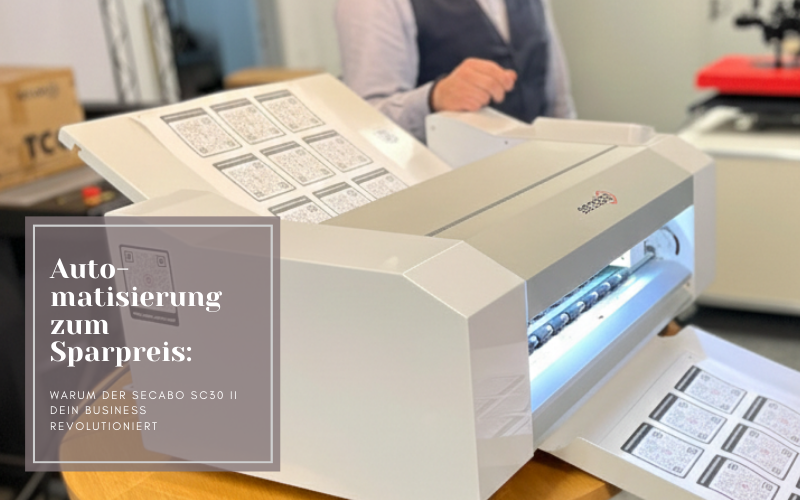
The Secabo SC30 sheet-fed cutting plotter
The Secabo SC30 sheet-fed cutting plotter cuts out stickers, labels and other media with precise contours. We’ll show you just what this machine can do
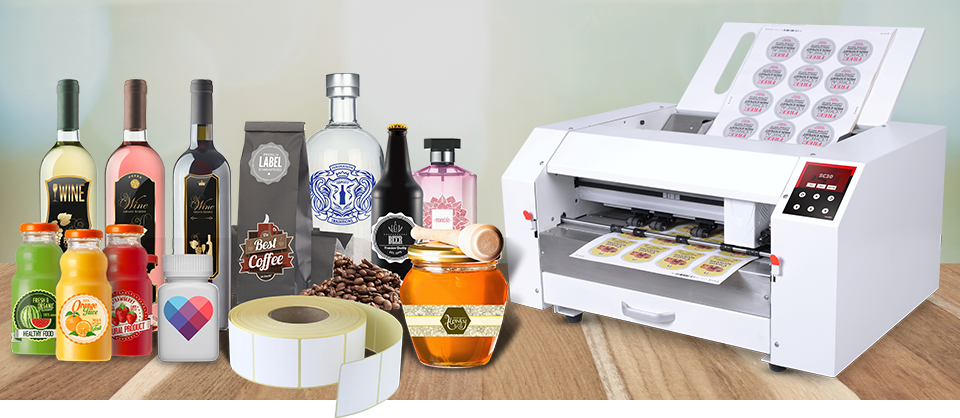
Cutting plotters have become an indispensable part of the advertising and textile finishing industries. They are used to cut out logos and lettering with precision. This can be extremely useful not only for businesses but also for hobbyists. For instance, with small, intricate patterns, it is virtually impossible to cut them out neatly with scissors. The possible applications are diverse, ranging from small stickers produced in large quantities to huge designs for advertising on vehicles and in shop windows. To achieve the best results, it is essential to choose the right model for the job at hand. In today’s blog post, we’re introducing the Secabo SC30 sheet-fed cutting plotter. This is particularly well-suited to the production of stickers and labels.
Secabo SC30 Sheet-fed Cutting Plotter
The Secabo SC30 sheet-fed cutting plotter precisely cuts out stickers and similar items measuring up to 330mm x 488mm. Even large print runs can be handled easily with the SC30, as the machine feeds individual sheets from a stack of up to 50 sheets without any problems. A wide variety of printable materials, such as paper or film, are suitable for processing. Even complex shapes and small designs are no problem thanks to the DrawCutPro cutting software included in the package.
Equipped with the LAPOS Q registration mark recognition system, stickers, labels and other media can be cut to free shapes with precise contour accuracy. At the start of each sheet, a barcode containing the ID of the corresponding cutting job is scanned alongside the registration marks. This makes it possible to mix sheets with different cutting jobs. These are reliably scanned without the need for any additional intervention by the user. This makes the SC30 sheet-fed cutting plotter ideal for producing contour-cut stickers, labels and logos for product labelling and office applications.
Plotting stickers and labels with the SC30: Here’s how
Step 1: Prepare the design in DrawCutPro
If you want to design your own stickers or product labels, you’ll naturally need to choose a design first. Upload the relevant file to DrawCutPro and create the cutting outline. Once you’ve done that, you can copy the logo as many times as you like until the sheet is full.
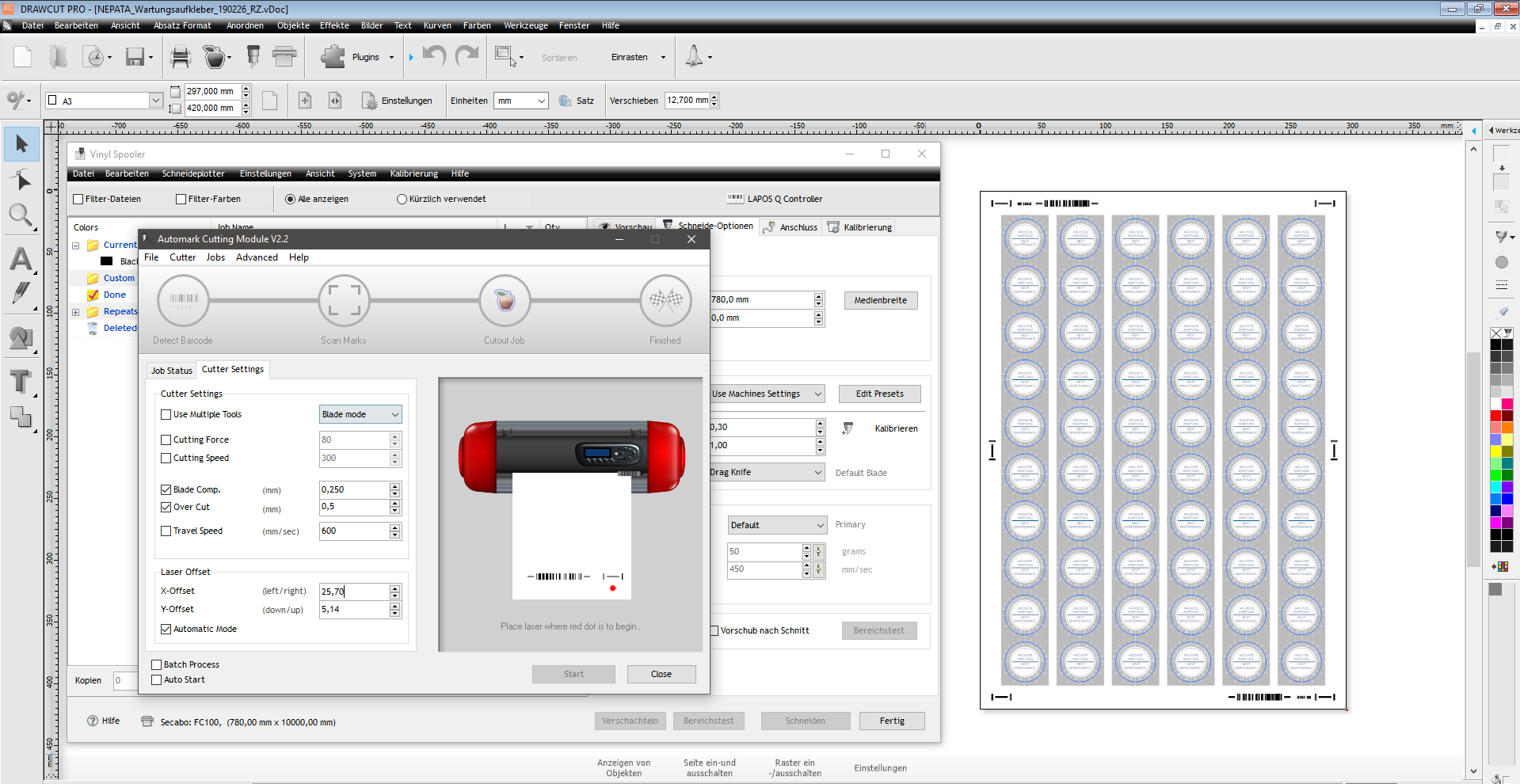
Step 2: Printing on adhesive film
Print your design onto the adhesive film using a laser printer, including registration marks. In the YOW! online shop, you’ll find a huge selection of printable media, including self-adhesive films and self-adhesive papersin a range of colours and qualities. High-quality films, in particular, can withstand extreme conditions such as outdoor use or application to uneven surfaces. For labels and product tags, you’ll find a range of printable media in our YOW! shop.
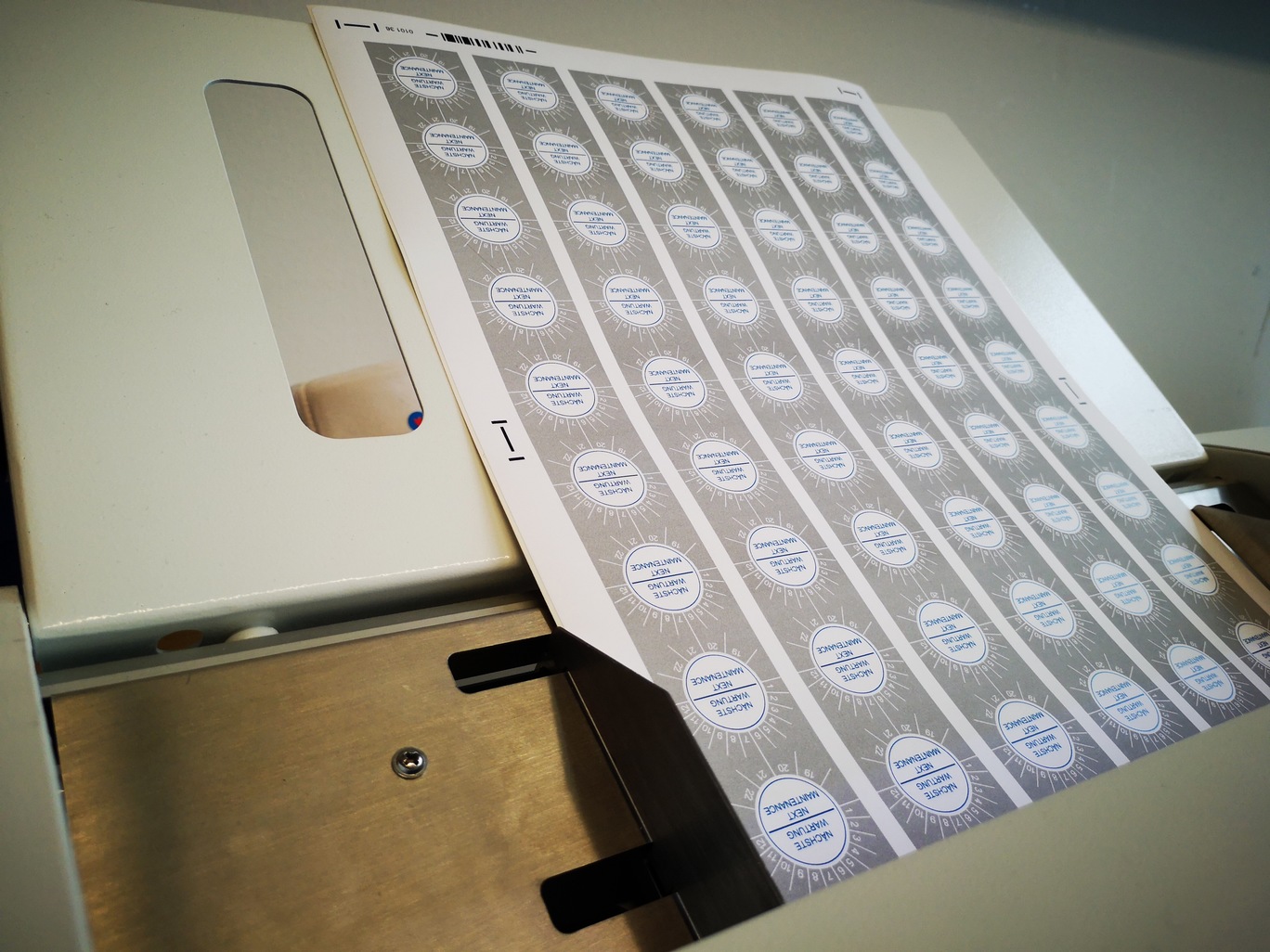
Step 3: Carry out the cutting job
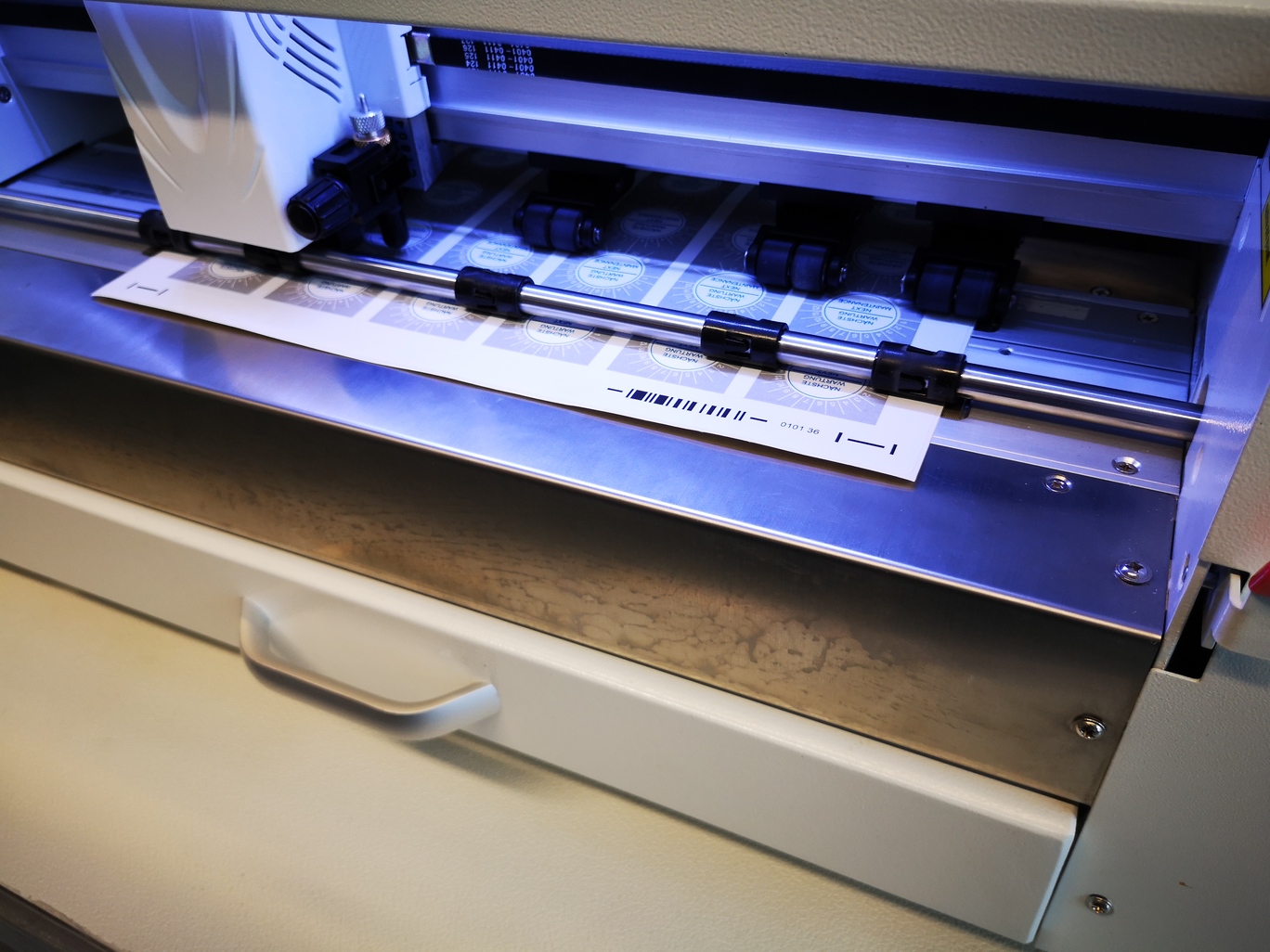
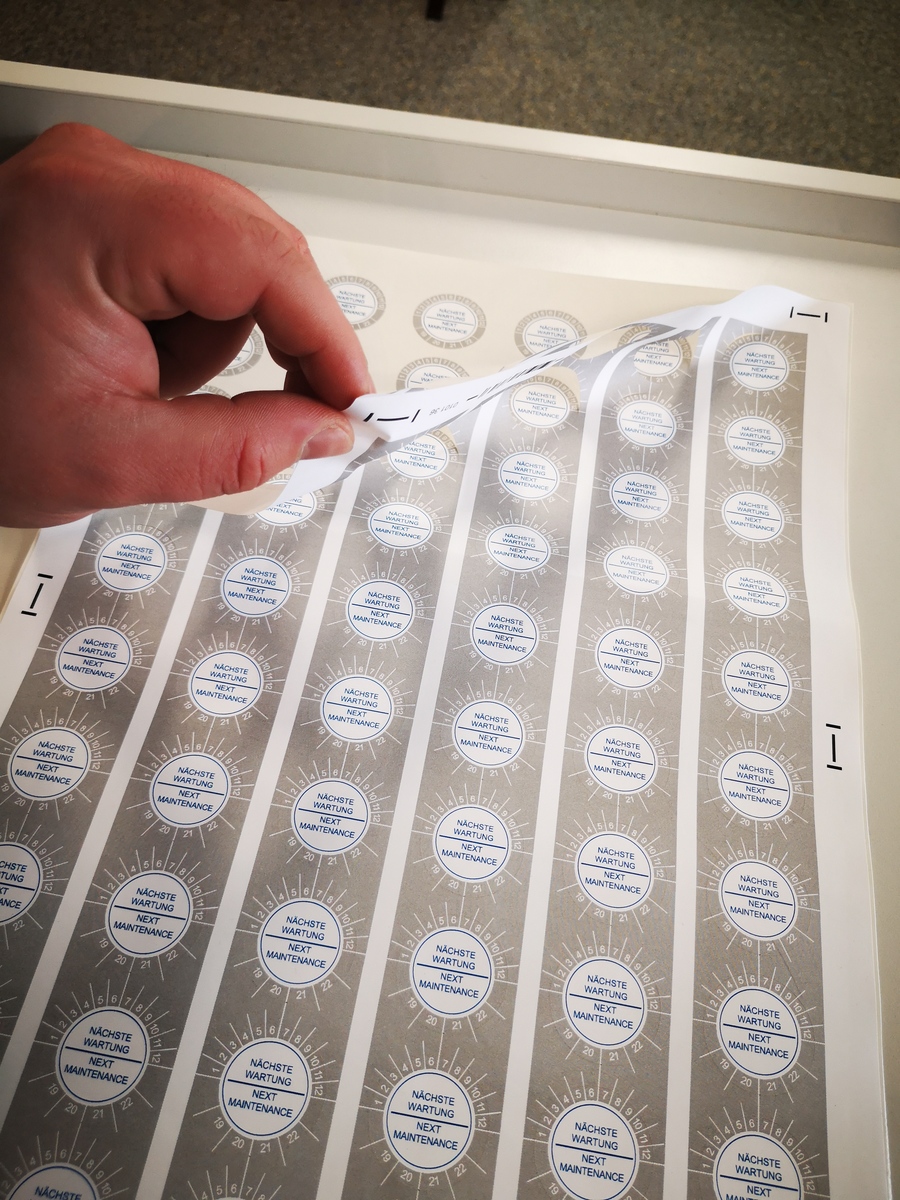
Place your printouts in the paper feed tray of the cutting plotter and secure them using the side guide. Start the spooler in DrawCutPro and activate the Lapos Q Controller. When you click ‘Start’, the plotter will automatically begin the cutting process. Once all the sheets have been plotted, you can carefully peel the finished stickers away from the cutting scraps. Done!
> You can find a video tutorial and further information on digital label production here.
Are you unsure whether the SC30 sheet-fed cutting plotter is suitable for your needs and require further information? Or are you interested in one of our other products? Our knowledgeable and friendly service team will be happy to help. We’re here for you Monday to Friday between 8.30 am and 12 noon, and between 1.30 pm and 5.30 pm. Outside our business hours, you can still reach us by email or via our contact form. Simply leave us a message so that we can get back to you as soon as possible!