Creating multicoloured stickers – from coloured plotter films
Combining several single-colour plots to create a multi-coloured sticker is a major challenge, particularly for beginners. Here, using the example of letterbox signage, we have outlined how to go about applying such stickers.
The project in this example involves applying a multi-coloured logo, business address and other details to a large letterbox. The stickers were produced using a Secabo S60 cutting plotter.
| Starting point – a white letterbox | Finished item: the decorated letterbox |
Step 1: Creating the file for plotting
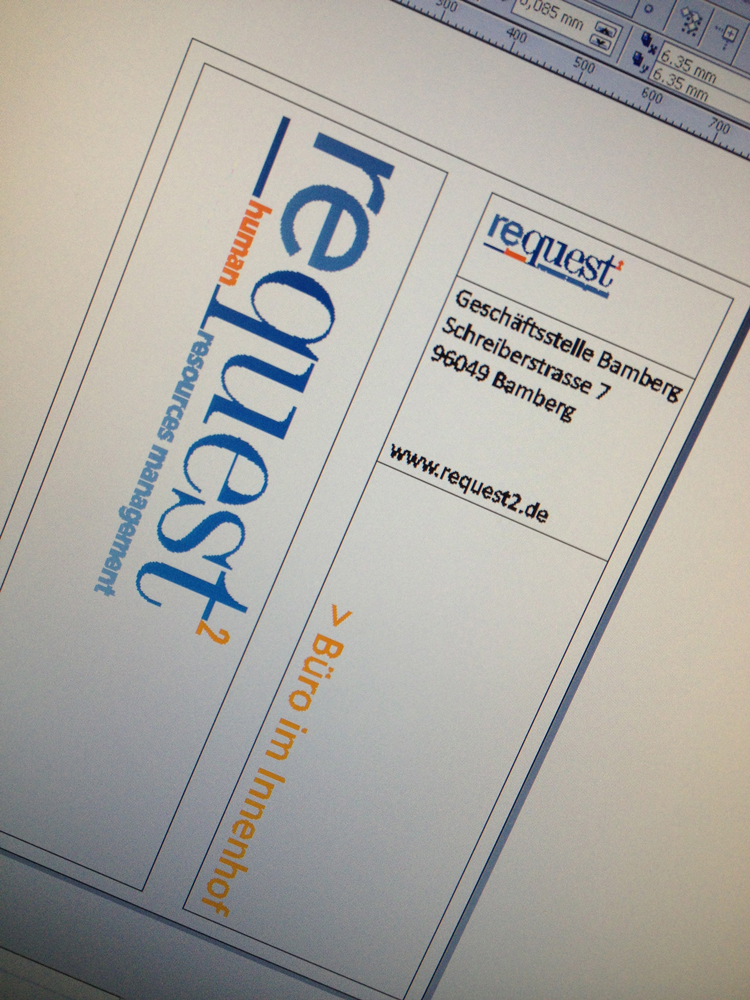
It is important to ensure that the colours in the document are selected in such a way that all objects which are later to be given the same film colour also have the same colour in the graphics file. In cutting software such as FlexiStarter Secabo Edition, you can deactivate the ‘Send all colours’ function in the Plot menu and select individual document colours for cutting in the area to the right and above the preview of the plot job.
2. Plot the first colour across the entire area
The first colour – ideally the one that covers the largest area of the overall design – is plotted onto the appropriate self-adhesive film first, and the entire document is plotted in one go. So, activate the ‘Send all colours’ option in the cutting software and plot the entire design once.
During weeding, the parts that are actually created in a different colour are then removed. The fine cuts in the silicone backing make it possible to locate the correct position again later.
Tools such as a weeding pen or tweezers are helpful when weeding.
3. Plot and fit further colours
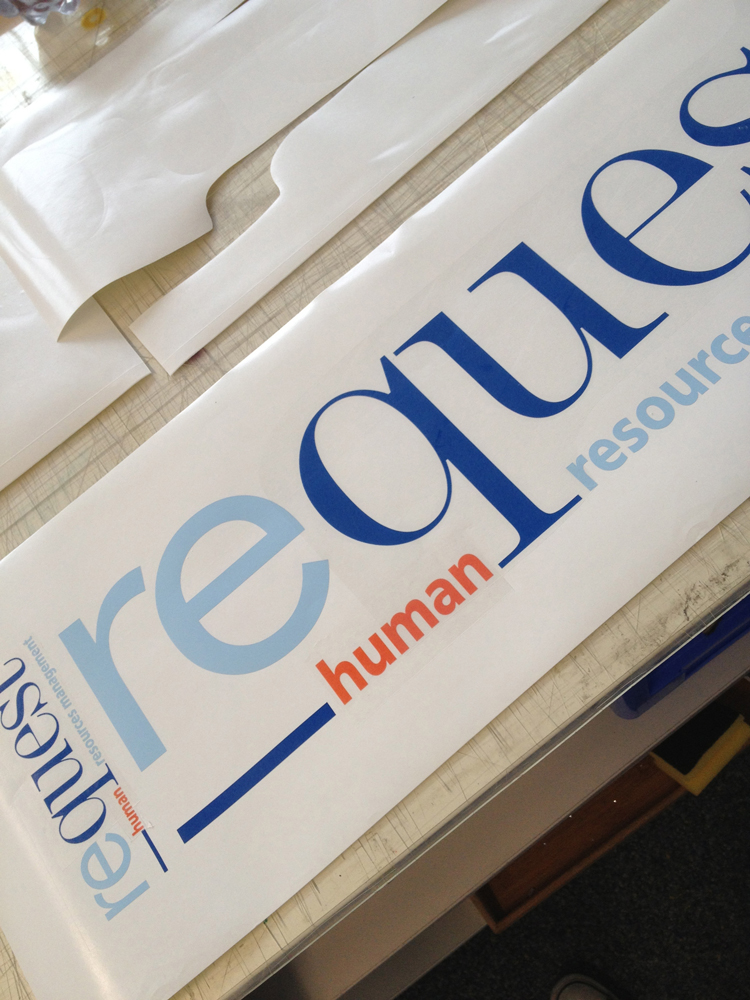
After weeding, the objects with relatively narrow overhangs are covered with transfer film and finally positioned in the correct places on the silicone backing sheet for the first colour.
One by one, all the necessary film parts are now plotted, weeded, applied with transfer film and then – without their own silicone backing, of course – positioned on the large sticker.
4. Apply the transfer film
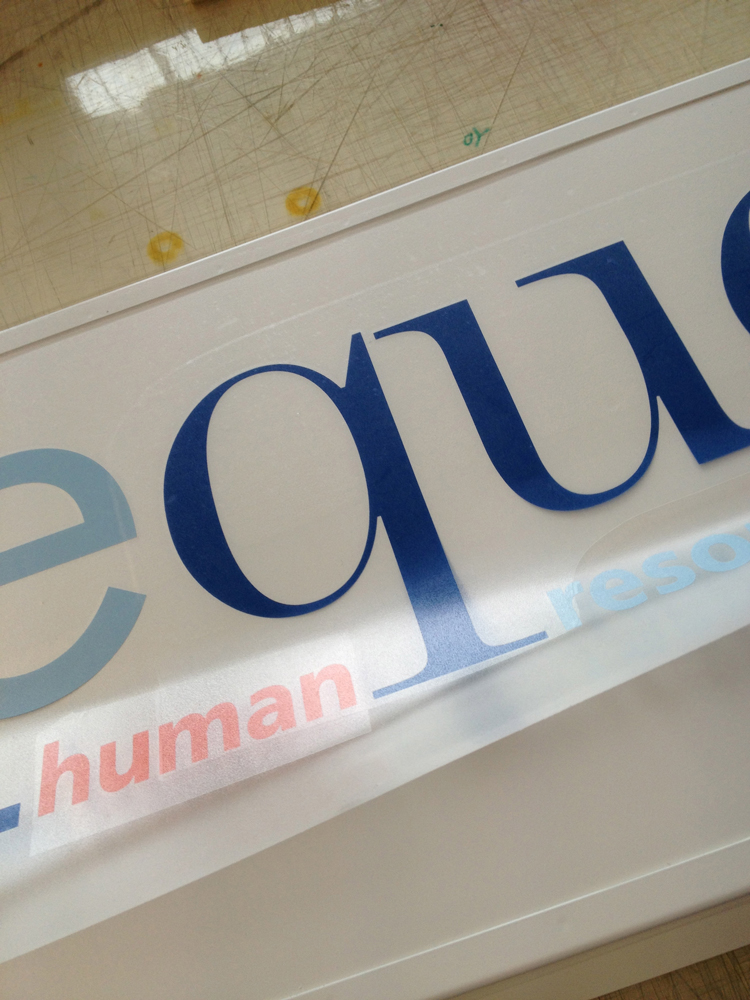
A transfer sheet is now applied over the entire sticker, including all the coloured sections – in some places, it is therefore stuck over the film twice, though this does not affect its function.
The multicoloured sticker is now ready and can be applied as normal.
5. Apply the stickers
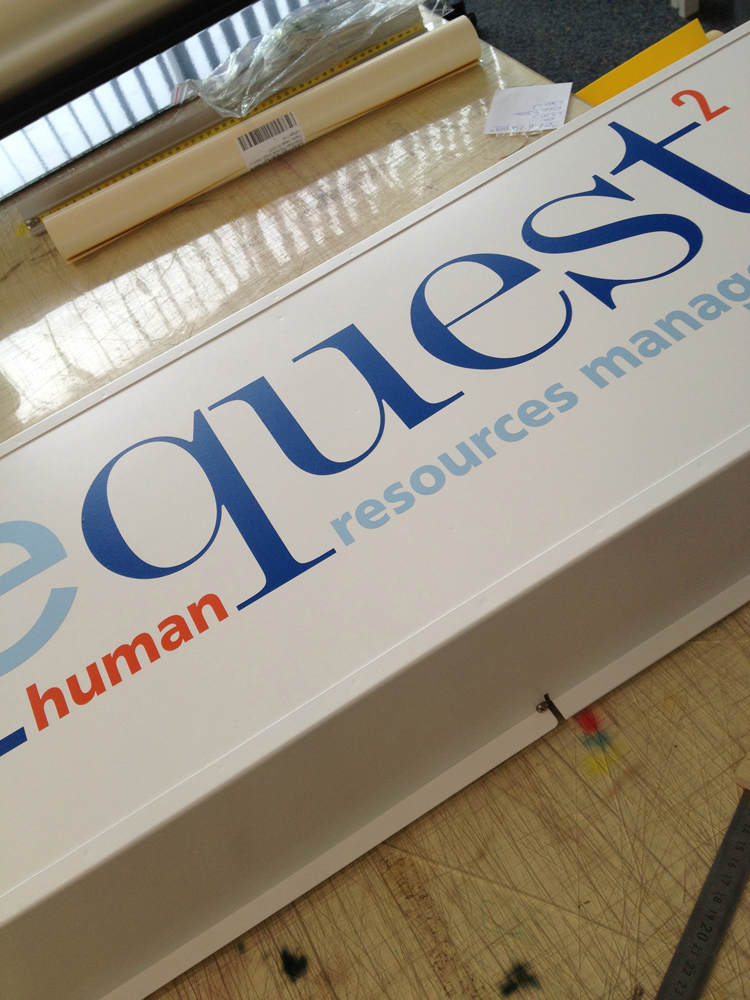
In our example, the large sticker has now been precisely positioned and secured, then dry-glued and the transfer film removed – and the multicoloured sticker is ready.
The other objects in this example are either single-coloured or have been prepared and applied in the same way as described above. This allows you to create a high-quality end product in a short space of time – using very inexpensive and simple materials.
Tools such as a squeegee or a roller will help you when applying the sticker.