Graphics tip for slide plots: Adding a border to text and cutting it out in CorelDraw X3
During training sessions and in-house exhibitions, our customers often ask us how to create a frame around text so that, for example, they can plot a frosted-glass film with cut-out letters as the basis for a sign and then stick the actual letters – but with an even spacing all round – can be stuck into this frame.
Here is the finished example: the frame around the text has been punched out of a red area, whilst the black text itself remains in place.
Finished example – text with a frame; the objects are separated from one another:


The steps required for this are described here using CorelDRAW X3. The process is virtually identical in previous and subsequent versions.
1. First, we select the Rectangle Tool to draw an element for the background (the frosted glass film) for our example.
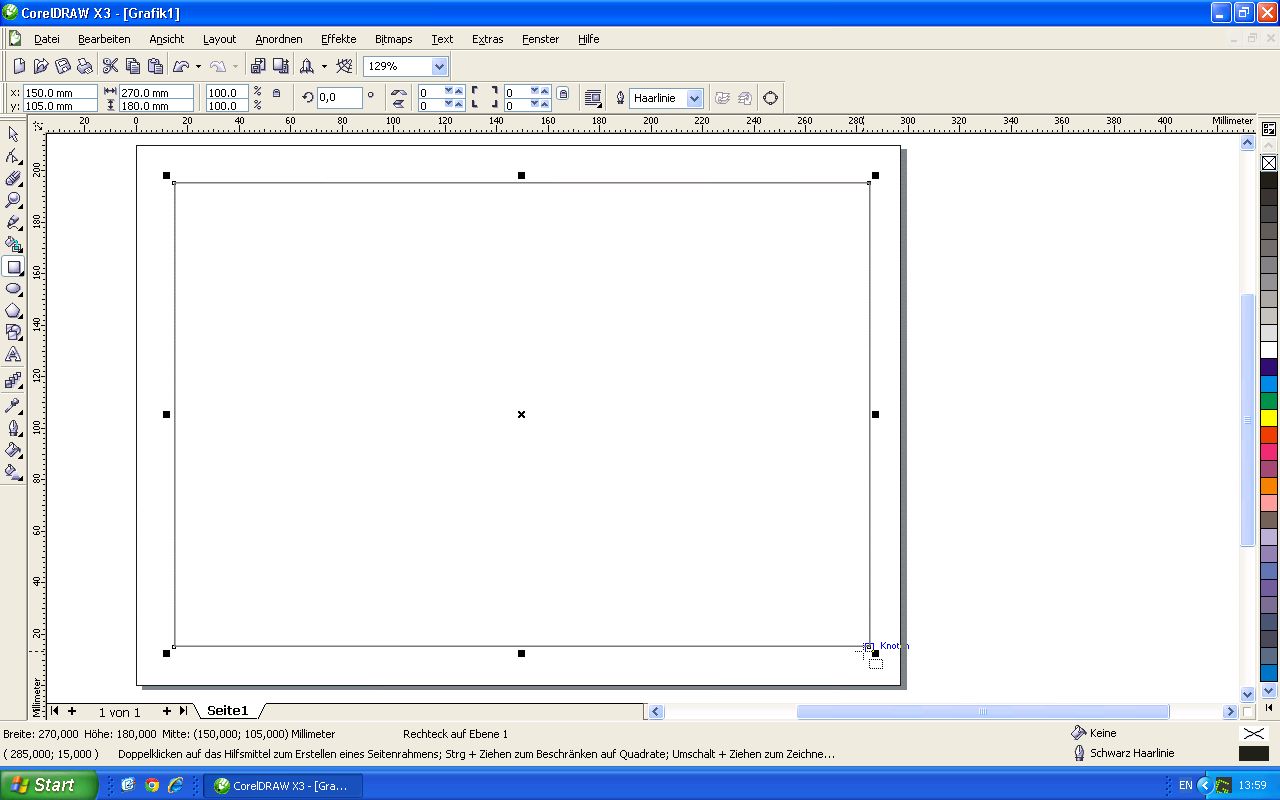
2. We fill the rectangle with red by clicking on the red colour swatch on the right-hand edge of the screen; we turn off the outline by right-clicking on the crossed-out white box above the colour swatches on the right.
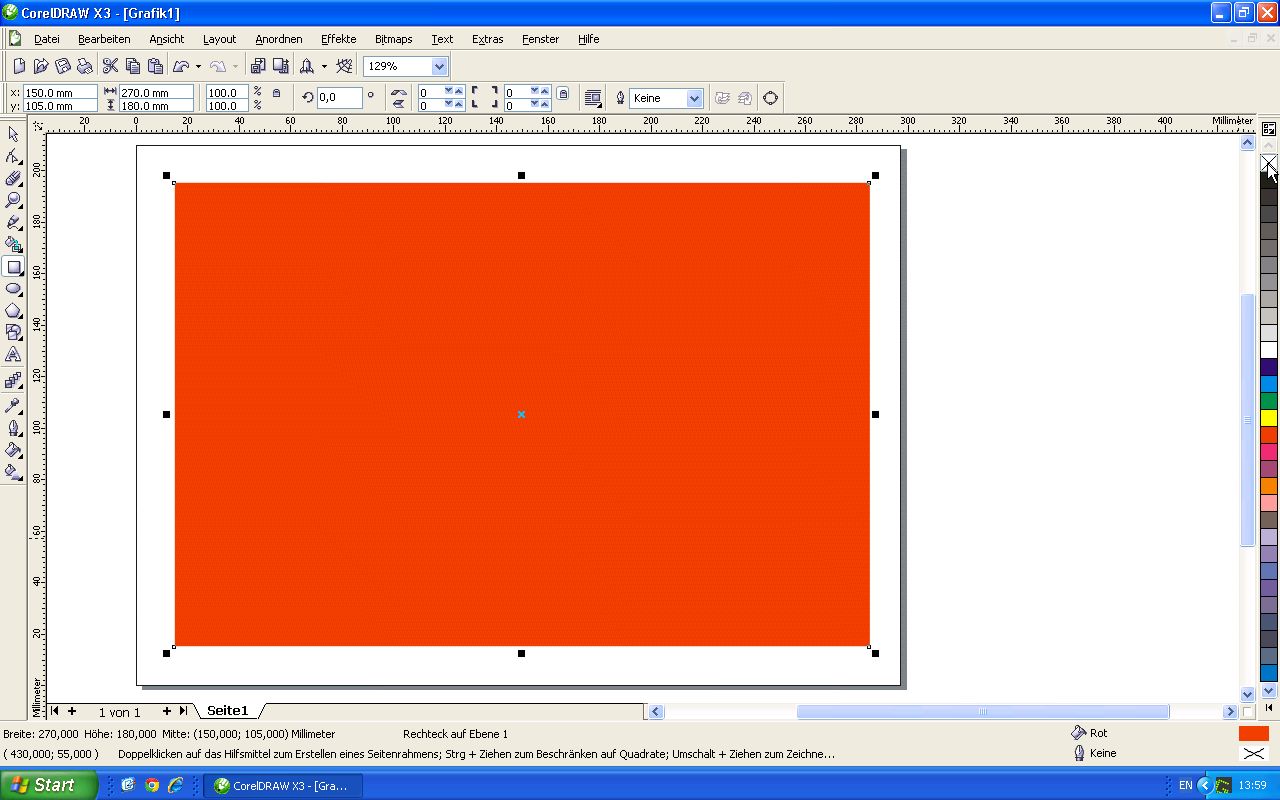
3. Using the Text tool, we add some text on the red background and then resize it to make it nice and big.
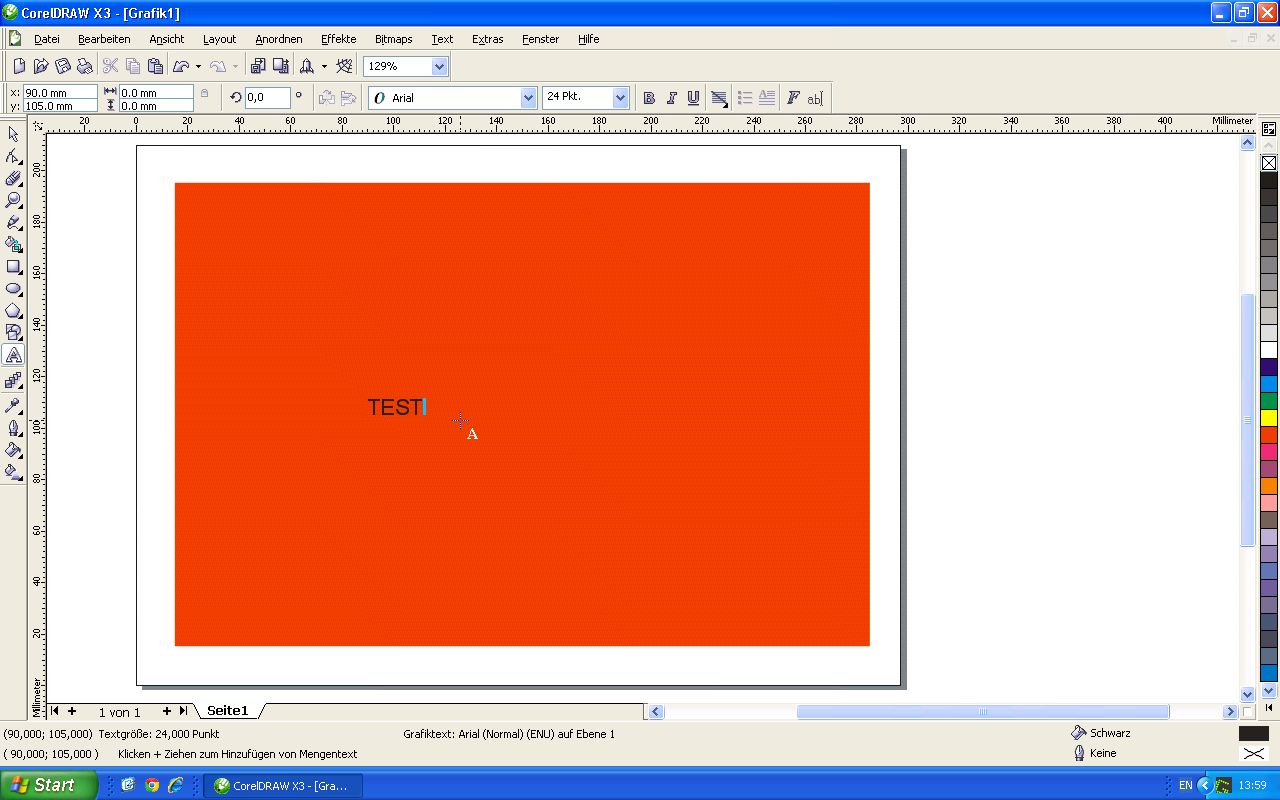
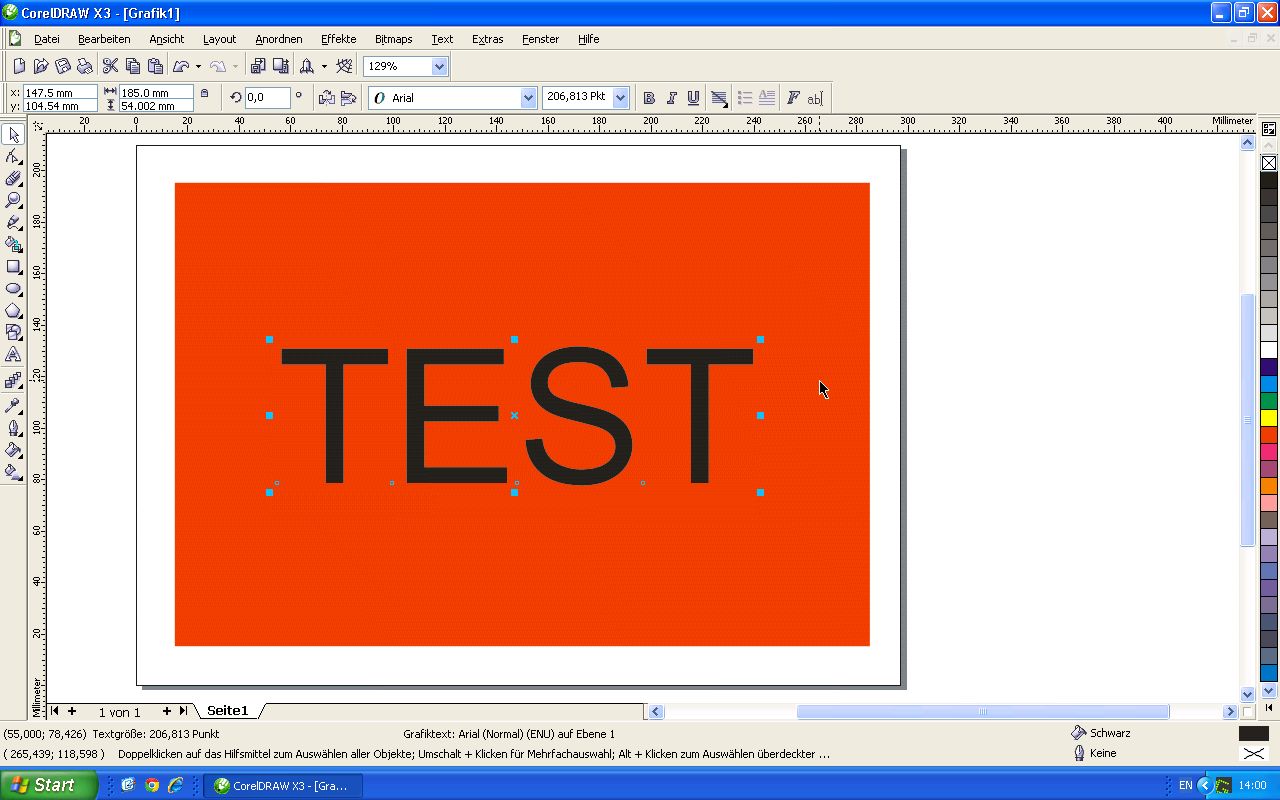
4. We open the ‘Outline’ menu from the ‘Effects’ top-level menu.
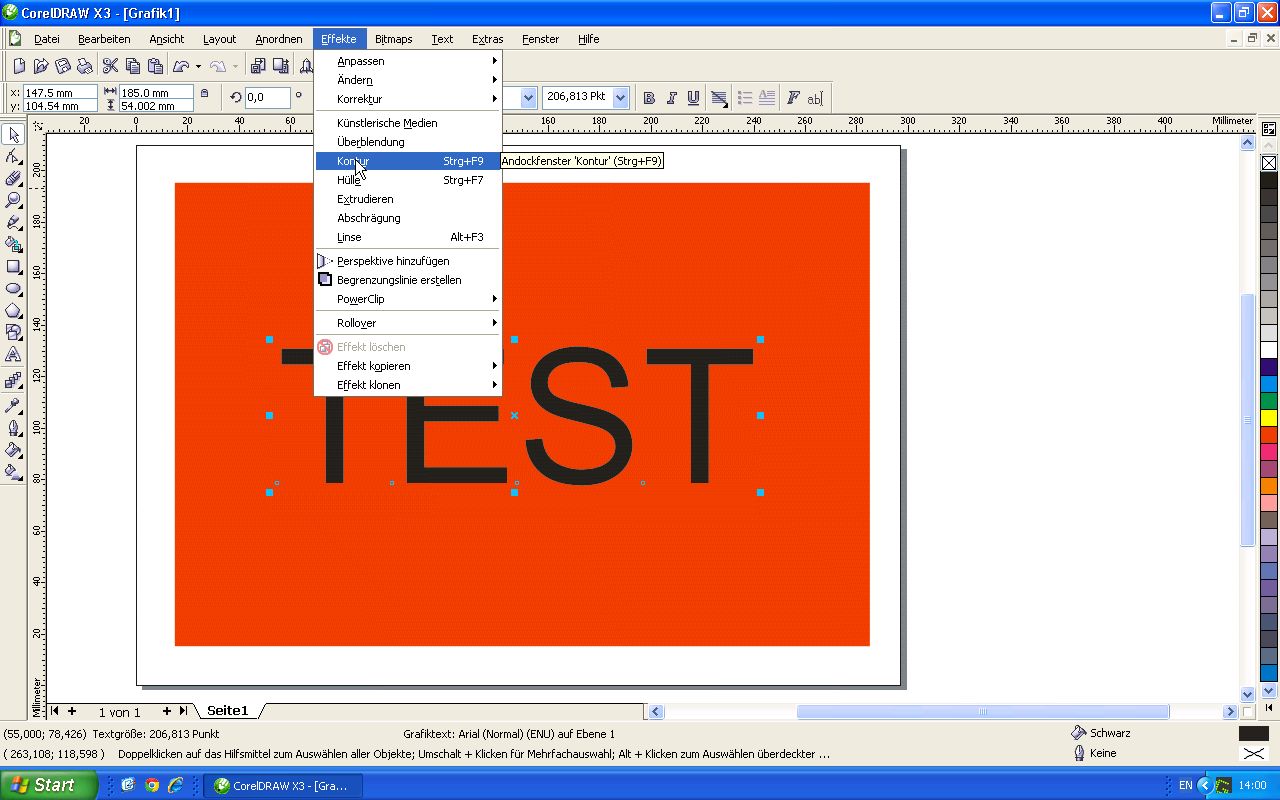
5. Select the text object using the selection tool. We can now choose, to the right of the artboard, whether to extend the outline ‘Outwards’ (in our case) or ‘Inwards’. We select a distance of ‘2.0 mm’ in ‘1’ step.
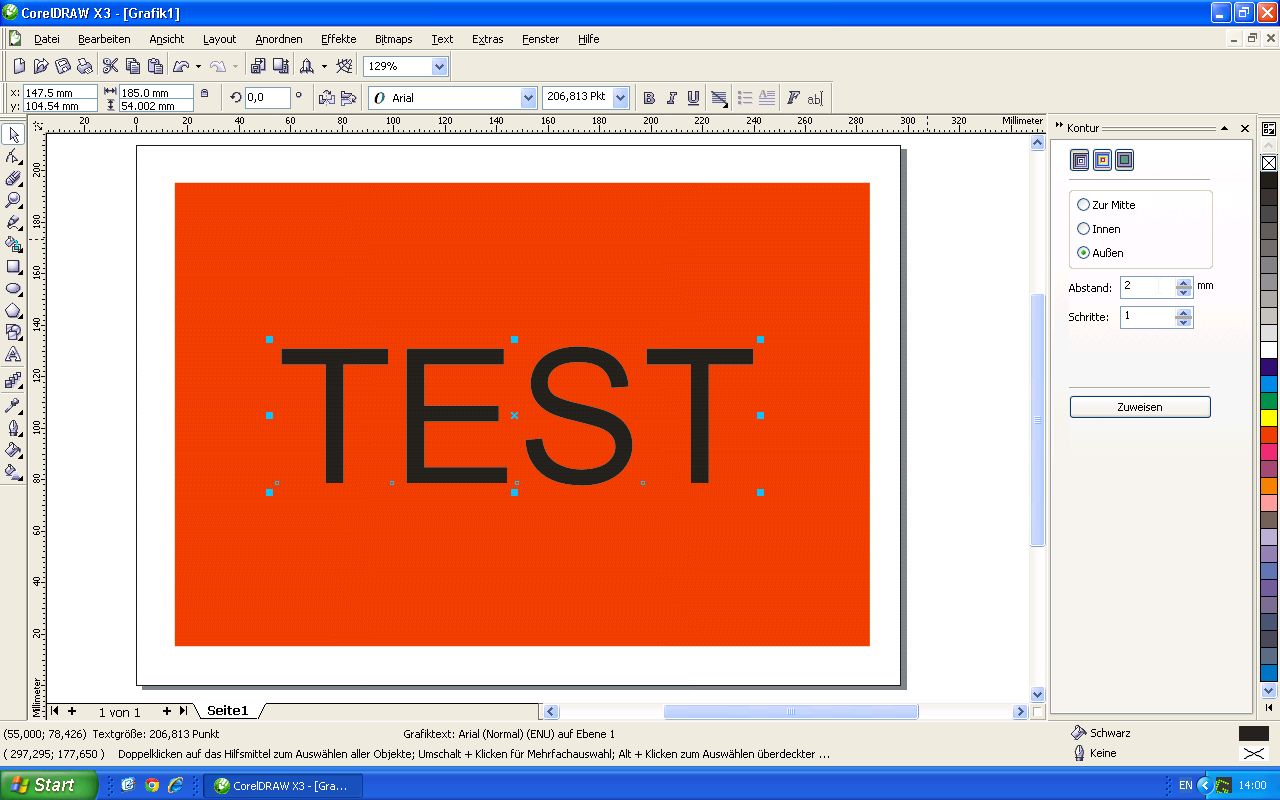
6. When you click on ‘Assign’, an outline in the text colour is added and the text appears bolder. In fact, however, both the text and the extended outline are now present.
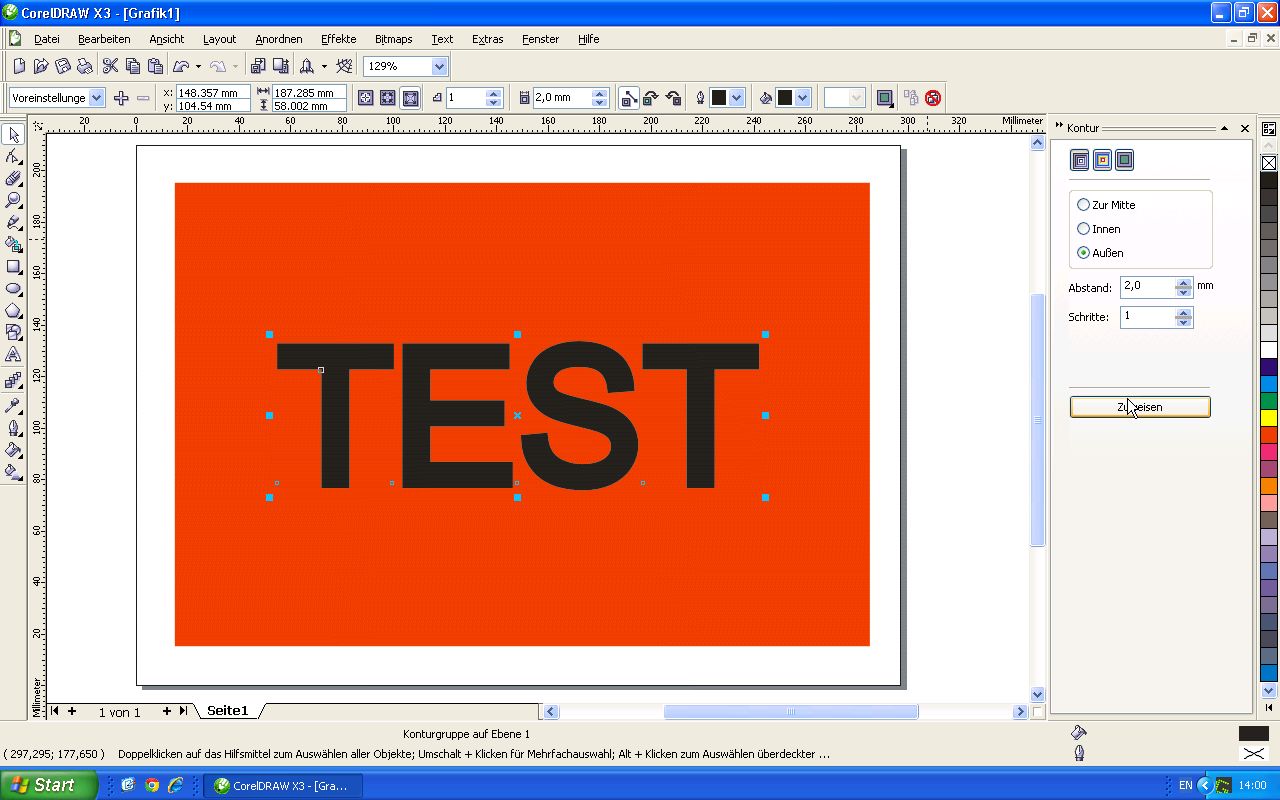
7. To be able to see the outline at all, we switch to ‘Outline’ under ‘View’.
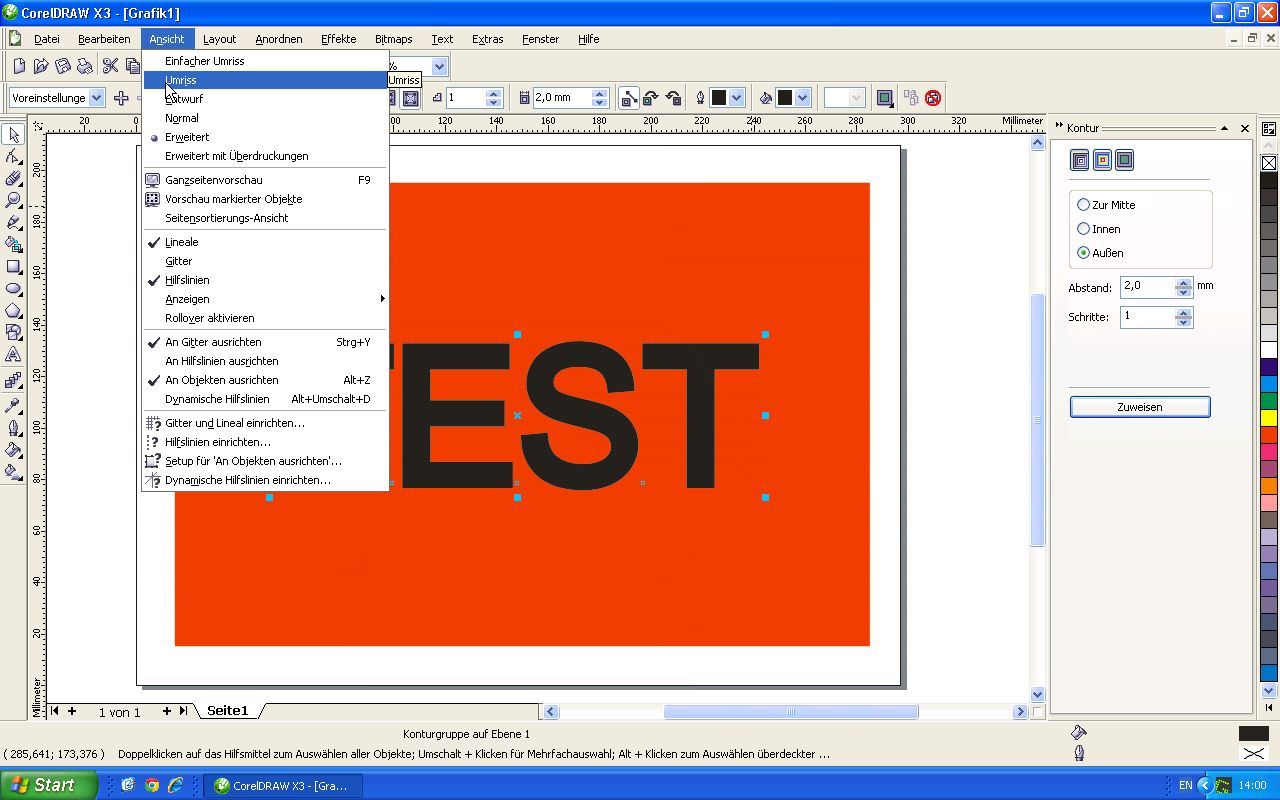
8. In the outline view, we separate the combination of the extended outline and the text via the ‘Arrange’ menu and ‘Ungroup: …’.
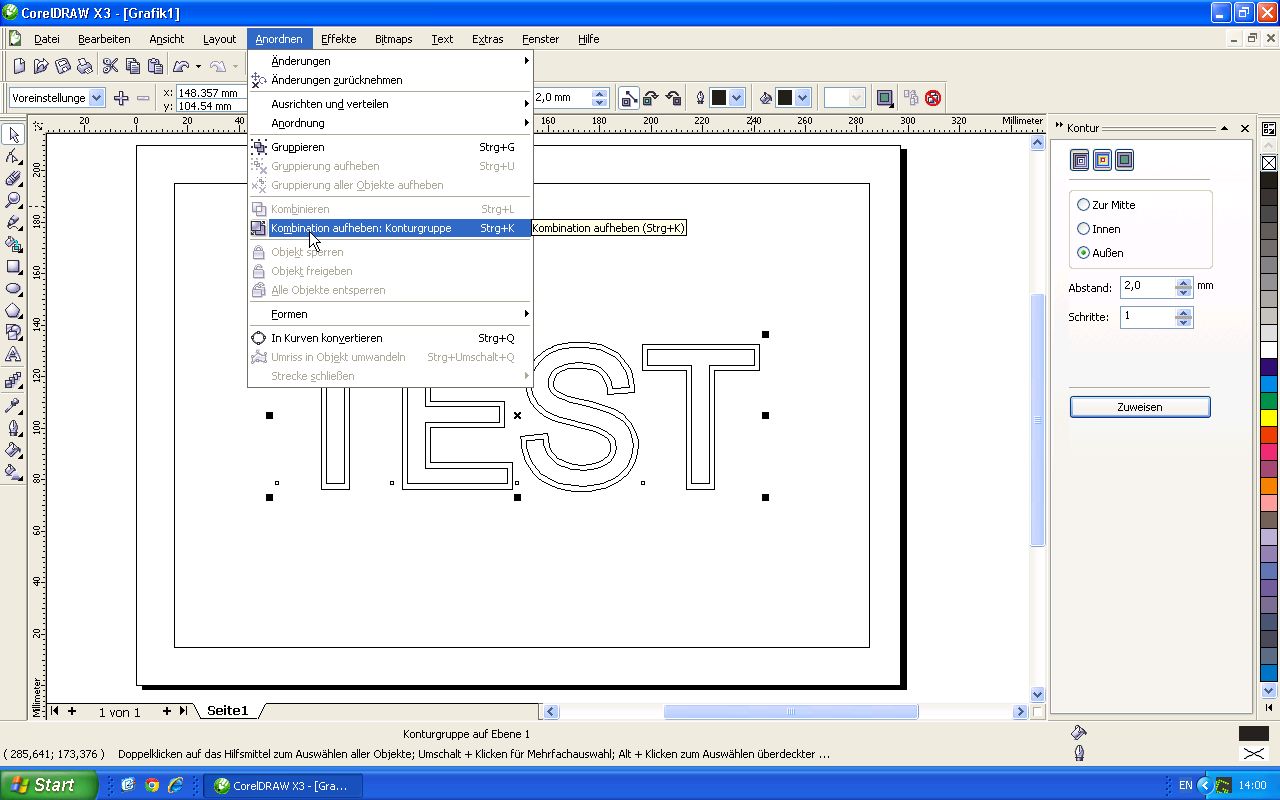
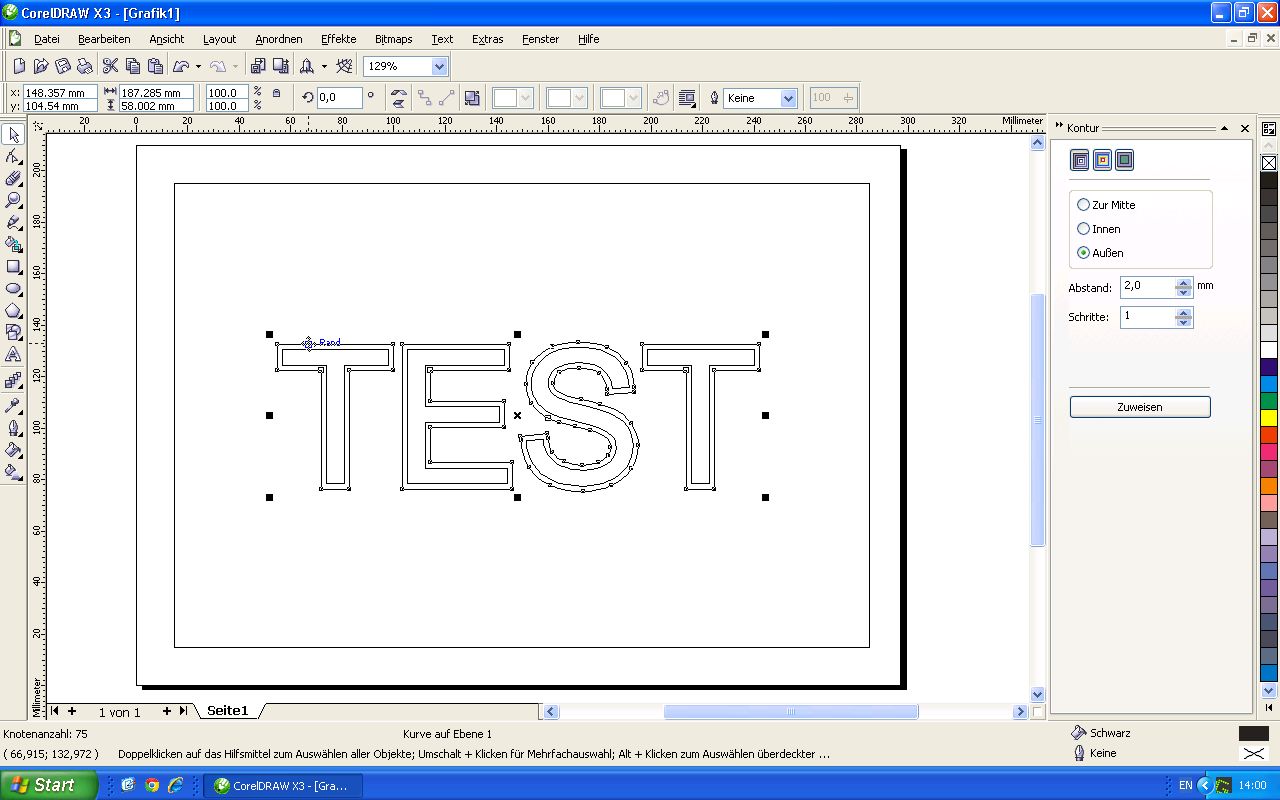
9. The two objects are now separate, and we will now select only the extended outline using the selection tool. We then switch back to ‘Extended’ view mode in the ‘View’ menu – the default setting in CorelDraw.
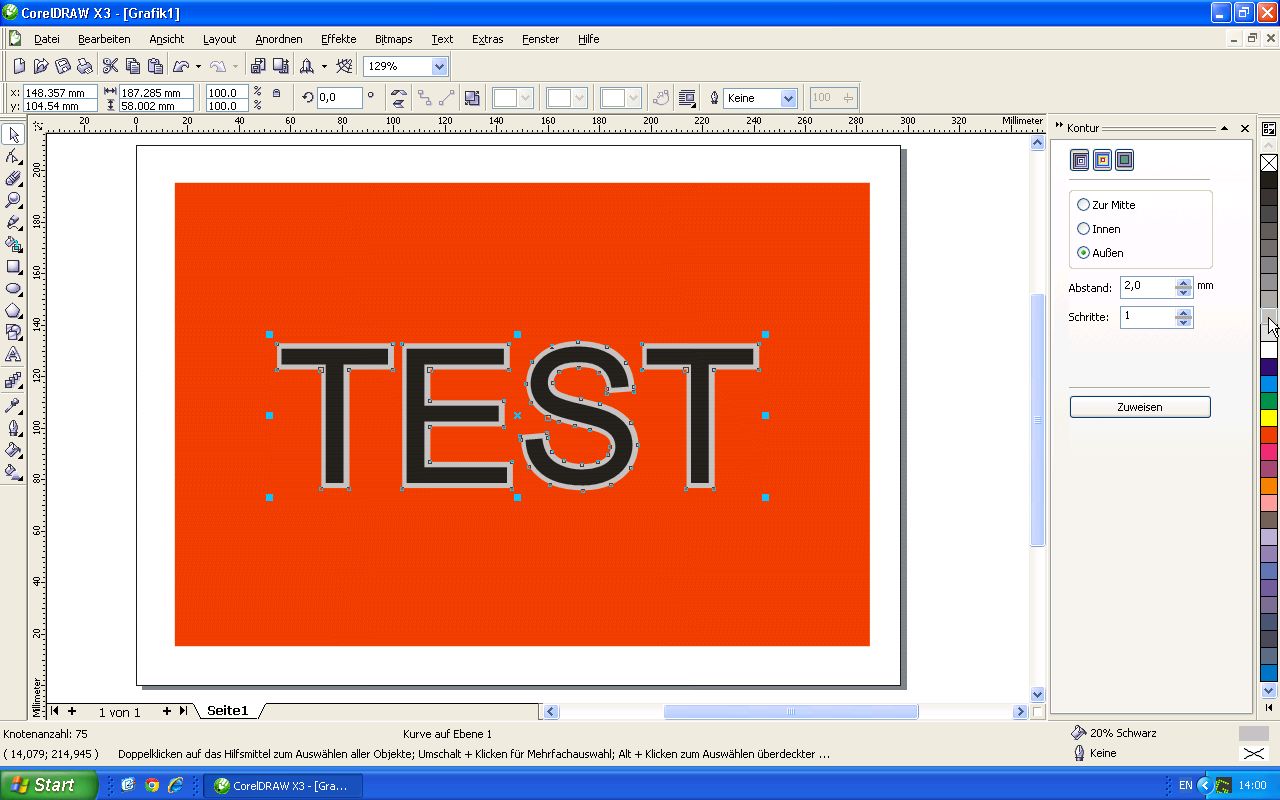
10. Now let’s choose a colour for the extended outline so that we can see it more clearly, e.g. light grey.
11. Next, the extended outline needs to be cut out from the red background so that it can later be cut out separately on the cutting plotter. To do this, we first open the ‘Shapes’ menu under ‘Arrange’ and ‘Shapes’.
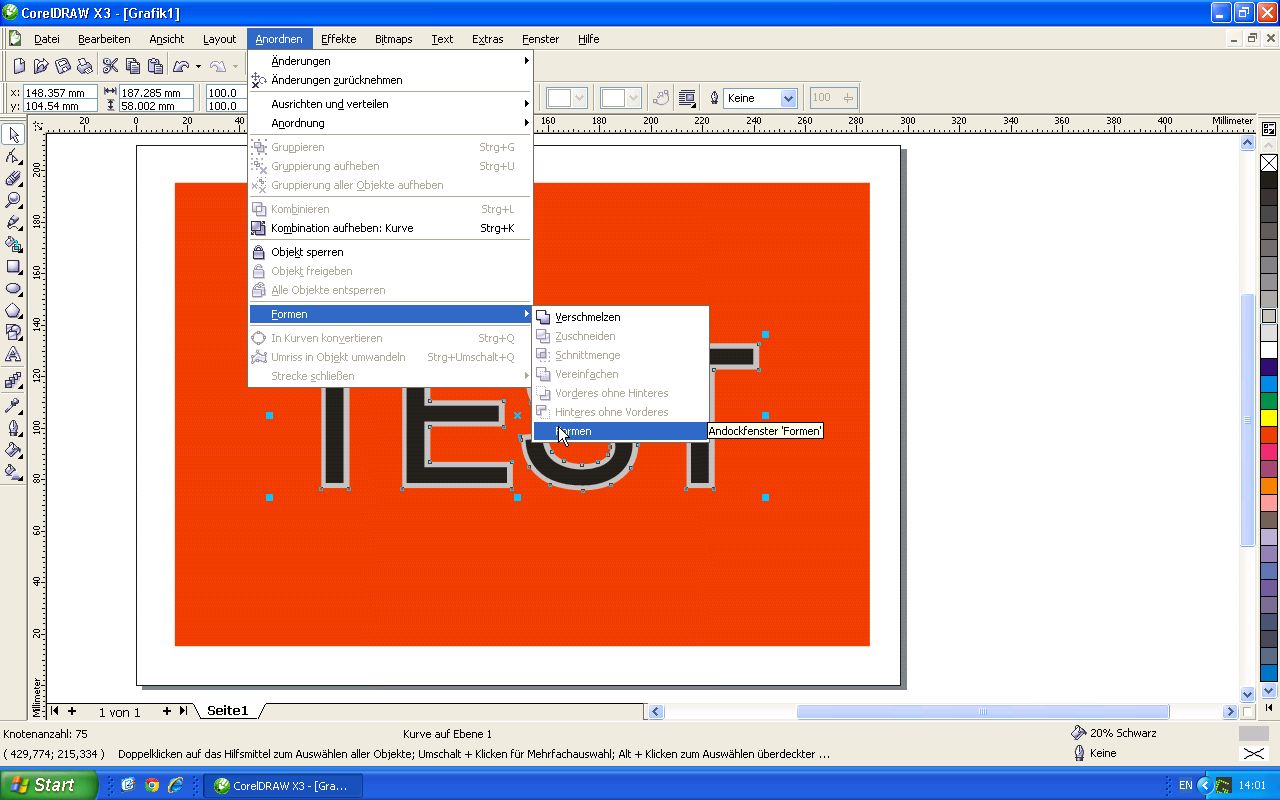
12. In the menu that opens on the right-hand side, select ‘Crop’ from the drop-down menu and ensure that the outline is still selected. We remove the ticks next to ‘Source objects’ or ‘Destination objects’, as we no longer need the outline (source object) individually after cropping, nor do we need the entire red background (destination object).
After clicking the ‘Crop’ button, we click on the red background with the mouse pointer to select the object to be cropped.
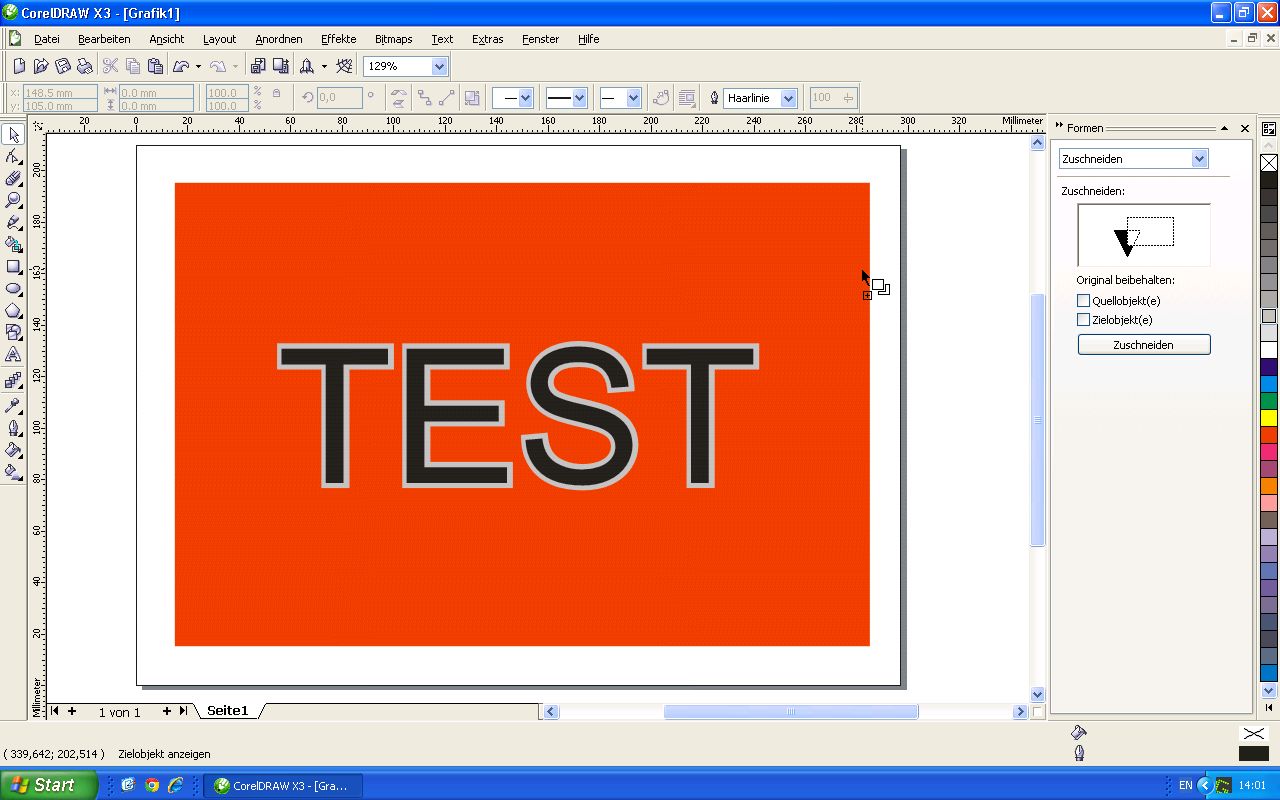
13. The frame you have created is now punched into the background.
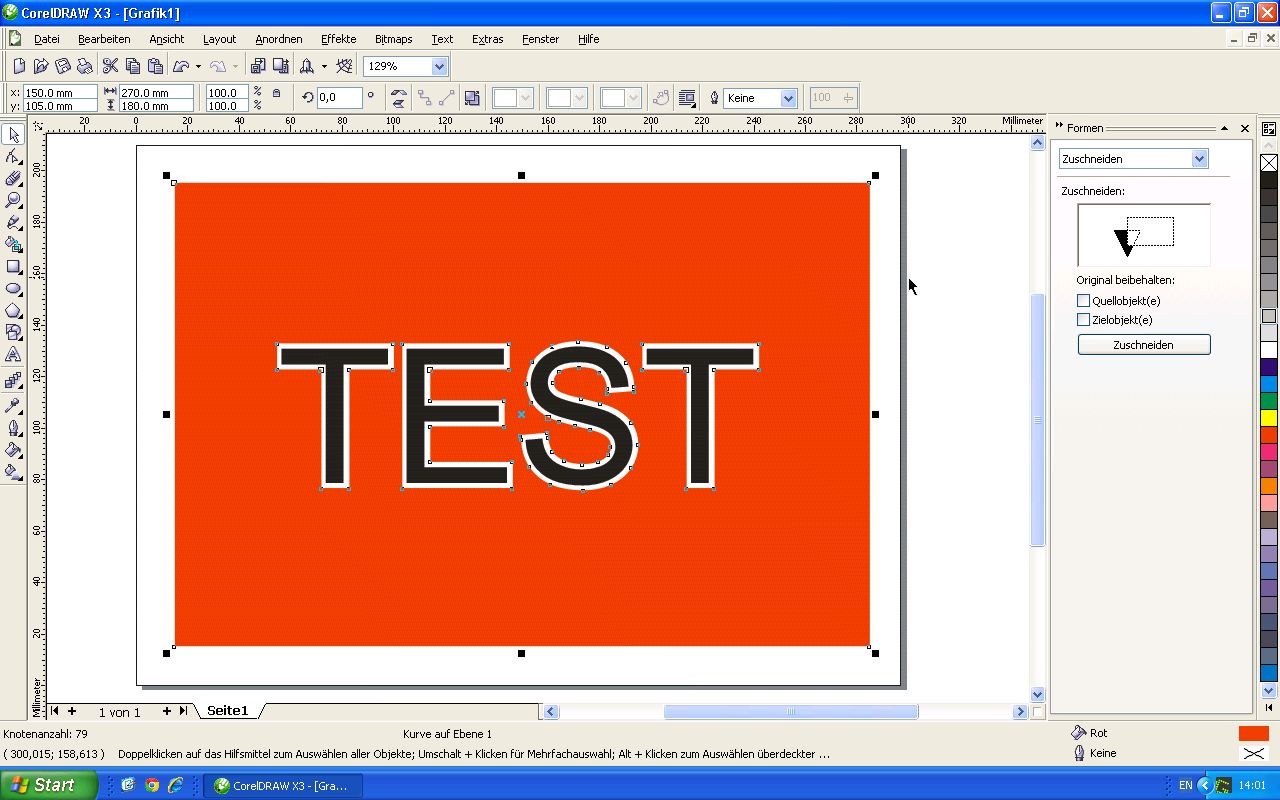
Both objects – the text and the background – are separate from one another and can be reused or cut out using a cutting plotter.
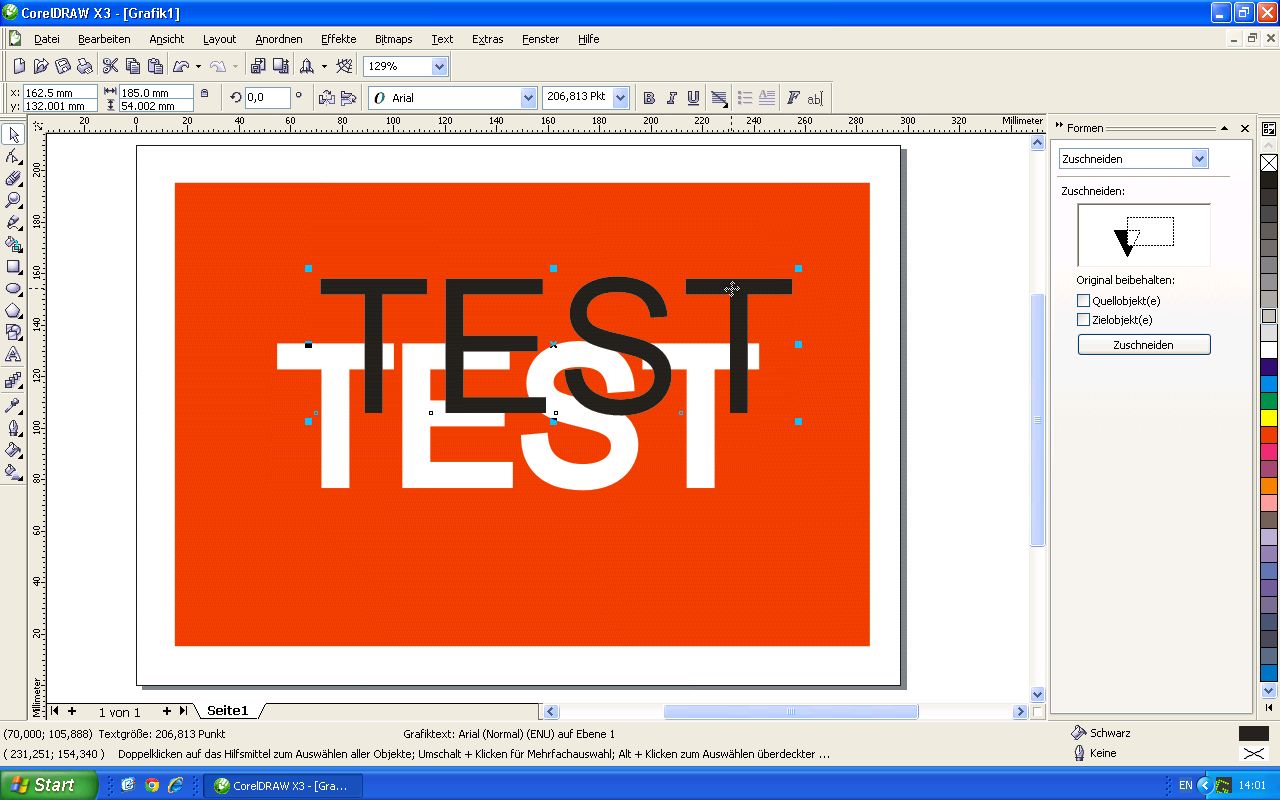
For further processing in a cutting plotter, the text should be converted via ‘Arrange’ and ‘Convert to Curves’; after that, it is advisable to export the file as an EPS file for further processing of the data in cutting software such as FlexiStarter or similar programmes.