Graphics tip for slide designs: Blending script fonts in CorelDraw X3
During training sessions and in-house exhibitions, our customers often ask us how to prevent the cutting plotter from plotting unnecessary lines between the letters when cutting cursive lettering, thereby effectively ruining the script.
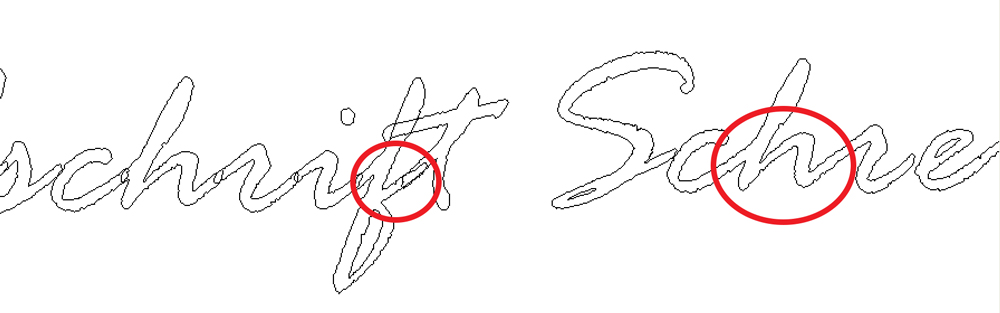
This is because, although cursive lettering may appear on screen as combined objects, in reality they are individual letters that are clearly distinct from one another and overlap at the points where they join. At these points, the letters must be merged. The following images explain how to do this.
Here is the finished example: on the left, the ‘separate’ letters; on the right, the merged text:
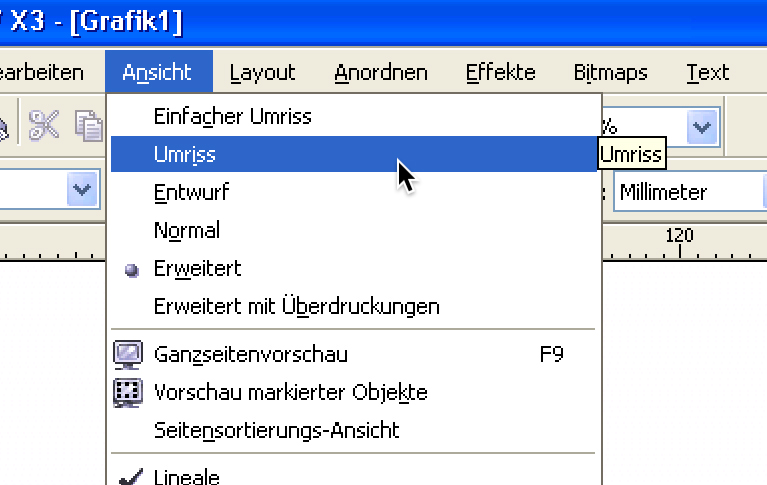
The first trick is that, in CorelDraw, you need to switch the view from ‘Advanced’ (the default for normal work) to ‘Outline’ so that you no longer see the font filled in, but only the lines that the cutting plotter would actually plot.
As a result, normal handwritten cursive no longer looks like this in CorelDraw
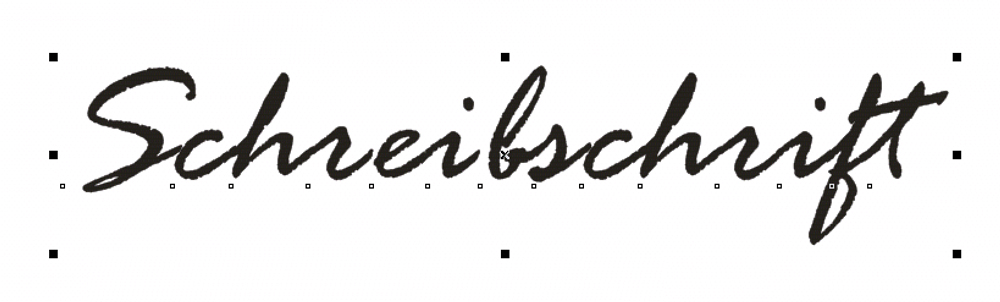
but rather like this:
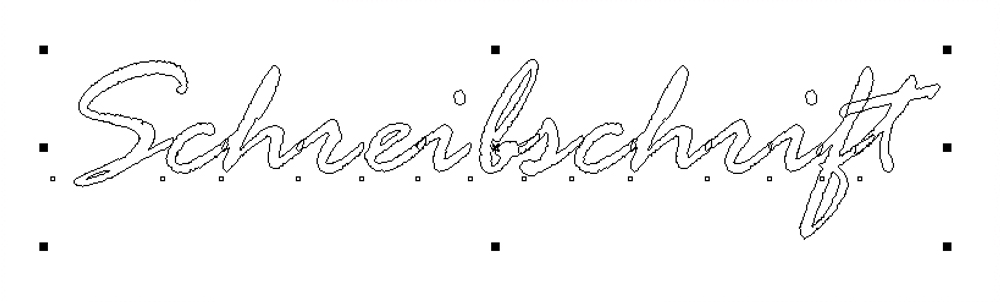
After switching to Outline mode, carry out the following steps:
1. First, you must ungroup the letters. To do this, with the text selected, click on the ‘Ungroup’ menu.
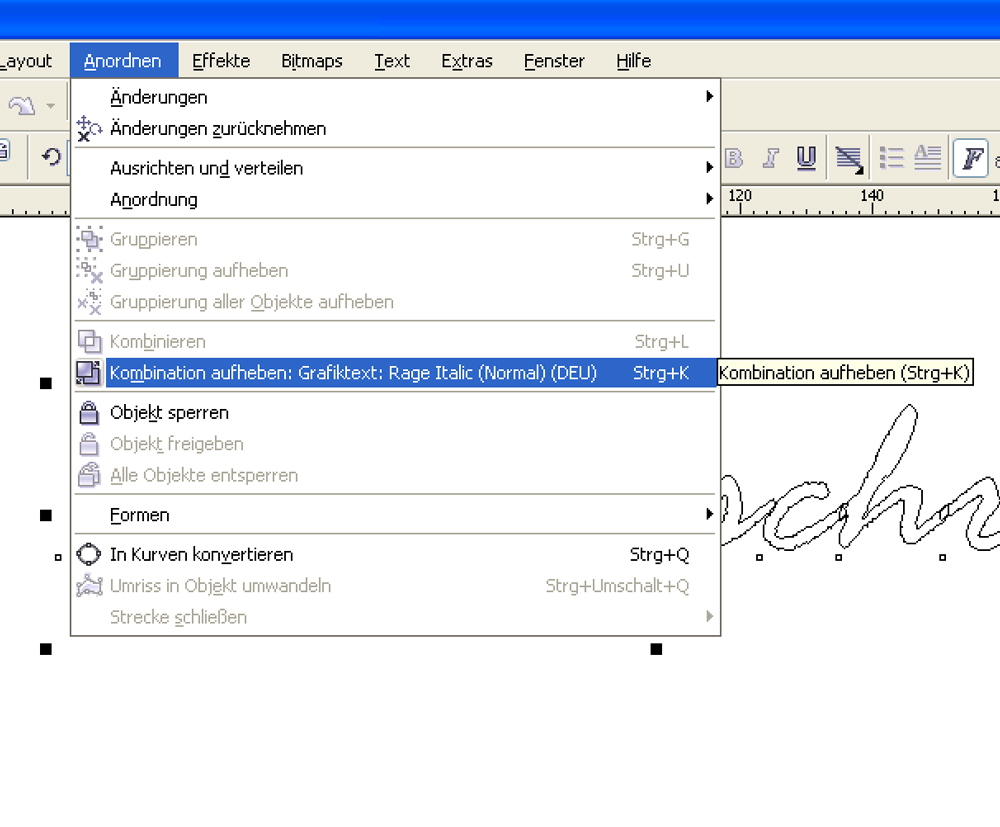
2. Now open the ‘Shapes’ menu and, in the menu that appears on the right-hand side of the screen, select ‘Merge’ from the drop-down menu.
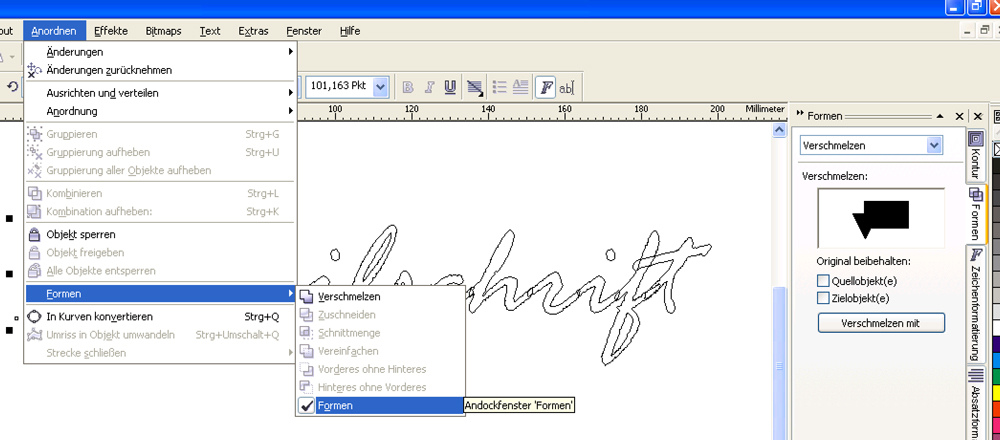
3. First, select the first letter of the text and then click on ‘Merge with’. Next, click on the adjacent letter; the overlap will now disappear.
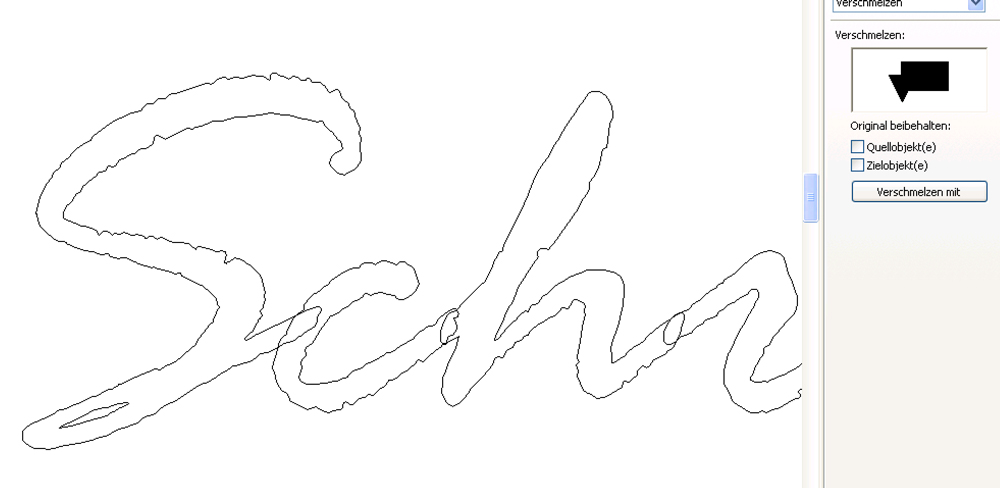
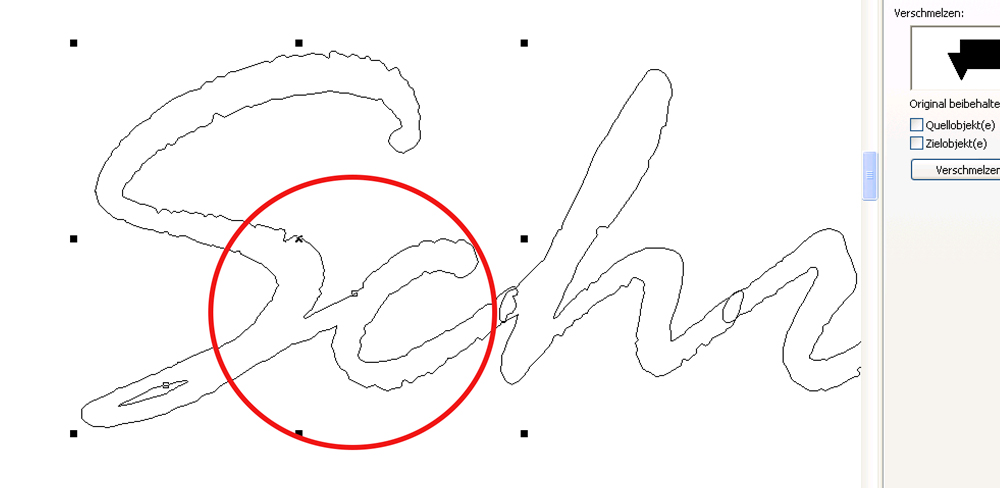
4. Now click on ‘Merge with’ again and then on the next letter, until all the letters in the text have been merged together – that’s it.
The same method naturally also works if, rather than cursive text, drawn objects such as rectangles and circles are in the way of one another and need to be merged.