Inkscape and SignCutPro on Mac OS X or Windows
Inkscape is a comprehensive, free and easy-to-use vector graphics programme that can be used as an alternative to CorelDraw or Adobe Illustrator. With the appropriate SignCut plug-in, data from Inkscape can be imported directly into SignCut, from where it can be sent to a cutting plotter.
Installing Inkscape on Windows is very straightforward. The installer is available free of charge athttp://inkscape.org/download/?lang=de. On macOS, you’ll also need to install the Xquartzframework to use Inkscape.
To import data into SignCut, in addition to SignCut itself, you’ll need the Inkscape plug-in, which is available directly from SignCut under ‘Plug-ins’. Once the plugin has been installed, the ‘Send to SignCut’ option will be available in Inkscape under Extensions – Export, which can be used to send files to SignCut.
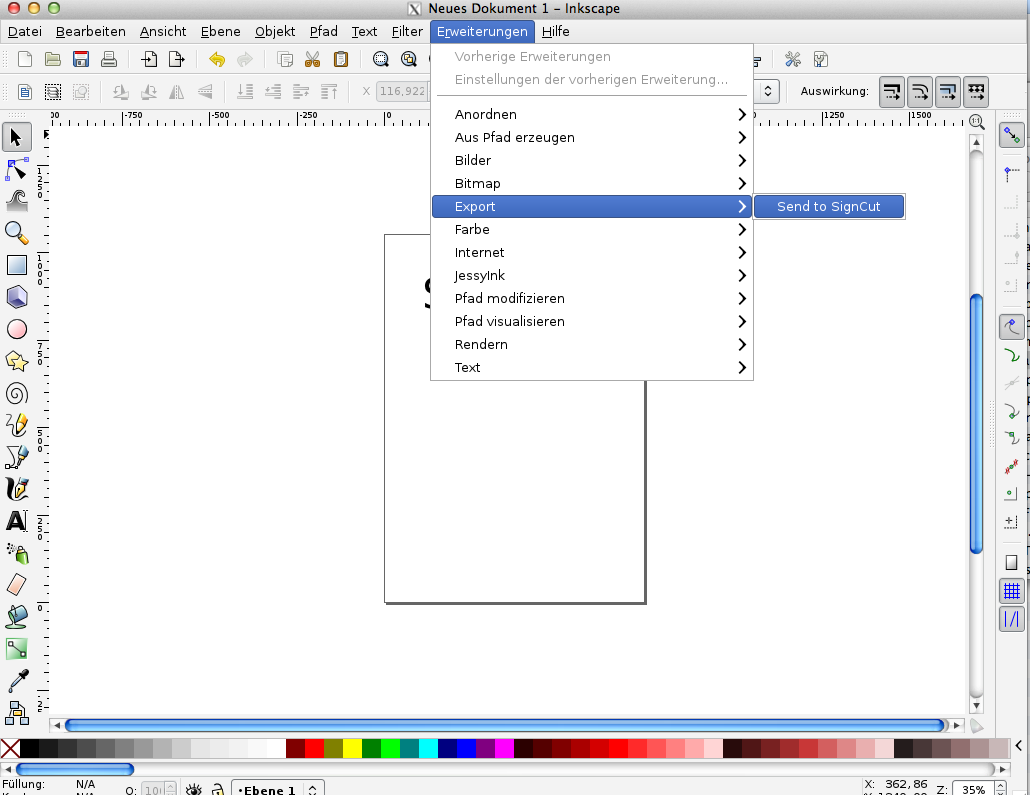
If a ‘Permission Denied’ error appears whilst sending, you can resolve this by opening the ‘Terminal’ programme in Mac OS X and then entering the following:
chmod 777 /Applications/SignCut.app/Contents/Resources/CallImport
Once the data has been sent to SignCut, it can be sent from there to the plotter and cut out
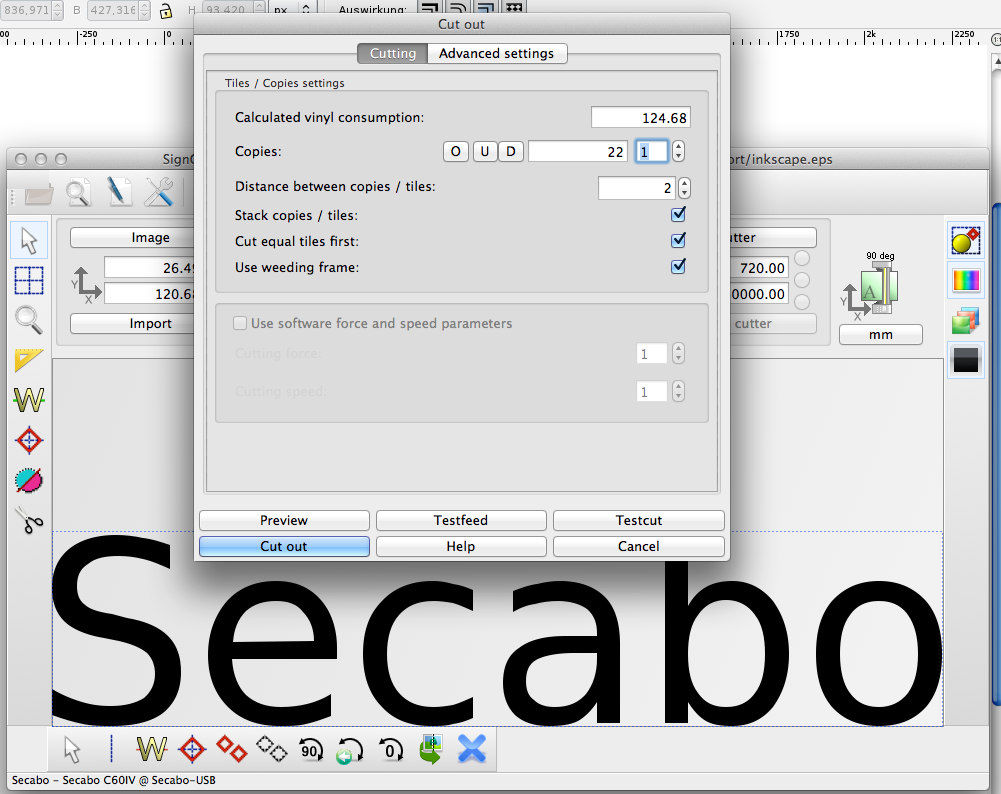
In SignCut, you must select ‘Secabo USB’ as the connection. If, in addition to Inkscape and SignCut, you also need to use FlexiStarter in a virtualised Windows machine, you must first disconnect the plotter from Windows in the VMware settings in order to cut directly from SignCut on the Mac.