FAQ on Ghost White Toner
Can I print in black and white at the same time using Ghost White Toner? How should I set up the print file? We answer these and other important questions in this blog post.
Can I print in black and white at the same time?
No. To print black and white on a single page, you must first print using the white cartridge and then, in a separate print run, using the black cartridge. Make sure that the white areas are not overprinted.
How should I set up my print file to print in white?
It’s actually quite simple. Anything that appears black on the screen will be printed in white when the white cartridge is installed. To achieve the best results, set the printer driver to print in greyscale only. Instructions on how to do this are also included with every Ghost Bundle!
Do I need special software to print in white?
No! With Ghost White Toner, you can create fantastic white prints using any programme. You can simply create your file in Word, PowerPoint or other Office programmes and print it using Ghost. Of course, Ghost also works brilliantly with Photoshop, Illustrator, Corel and other graphics programmes. For professionals: always set your graphics to 100% K to achieve rich white areas.
I want to print white, cyan, magenta and yellow on a document. How do I do that?
The best way to do this is to create two files. The first file contains all the areas, text and images that are to be white or coloured later. Make sure that everything you see on the screen is black and that ‘Print in greyscale’ is selected in the printer driver. Print this file first. It is important, of course, that the white cartridge is inserted. Now place the sheet back into the printer. Take care to ensure it is correctly aligned. The second file should contain only the coloured areas and black – in other words, everything that is to be printed in colour or black. Any objects that are to remain white must be removed from the file. Insert the black toner cartridge and now print the second file. This allows you to combine white and coloured printing to create great designs. This technique is also well suited for overprinting white areas or printing on white areas.
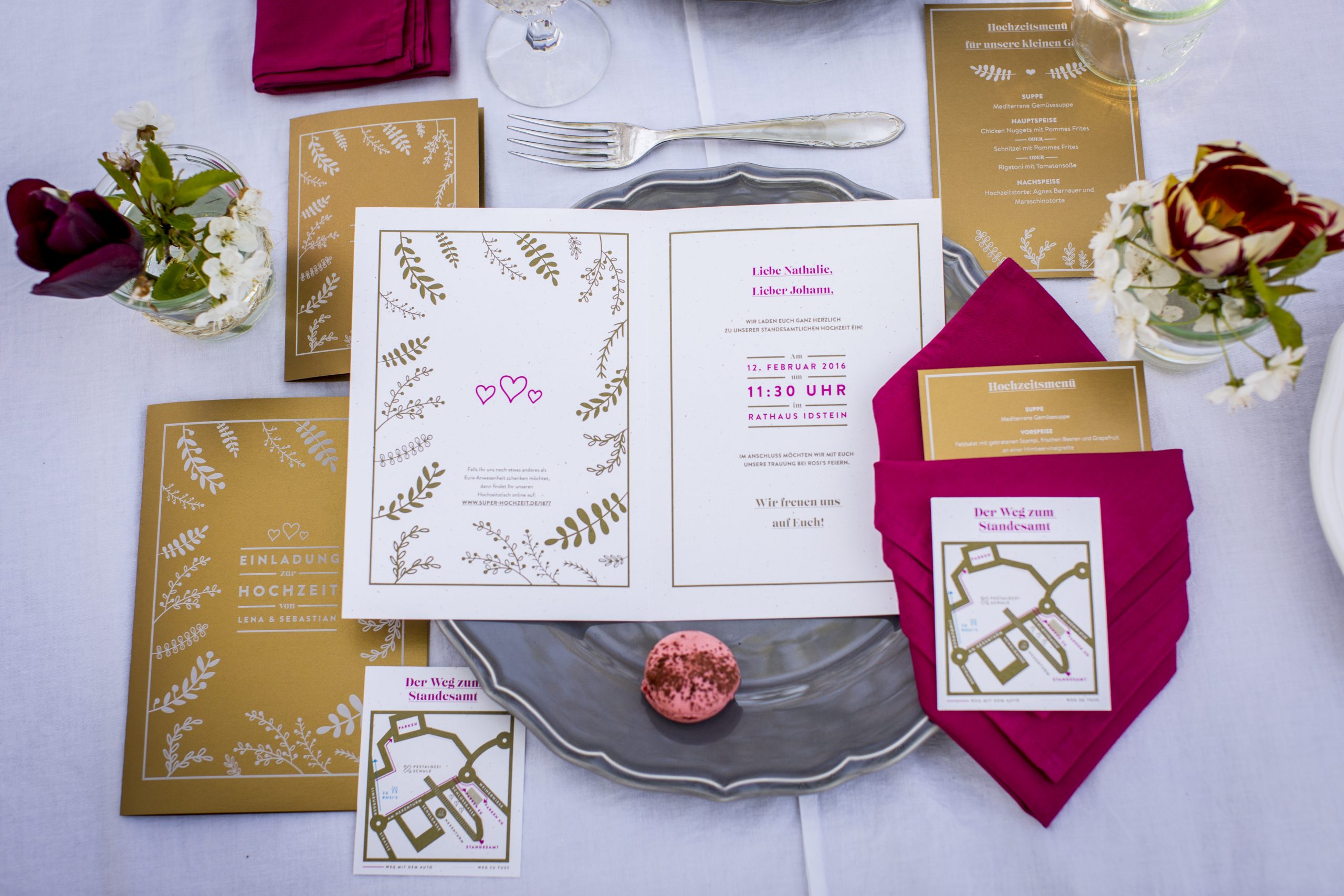
Ghost Gallery / Design examples:





VIDEOS
> Ghost White Toner: Unleash your creativity
> Video tutorial: Toner transfer onto textiles
PRODUCTS IN THE YOW! SHOP
> Little Ghost printer including white toner
> Big Ghost printer including white toner
> Little Ghost A4 white toner printing starter kit
> Big Ghost A3 white toner printing starter kit
> Little Ghost A4 white toner printing starter kit + Secabo TC5 SMART heat press
> Big Ghost A3 white toner printing starter kit + Secabo TC7 SMART heat press
DOWNLOADS